Find a transaction
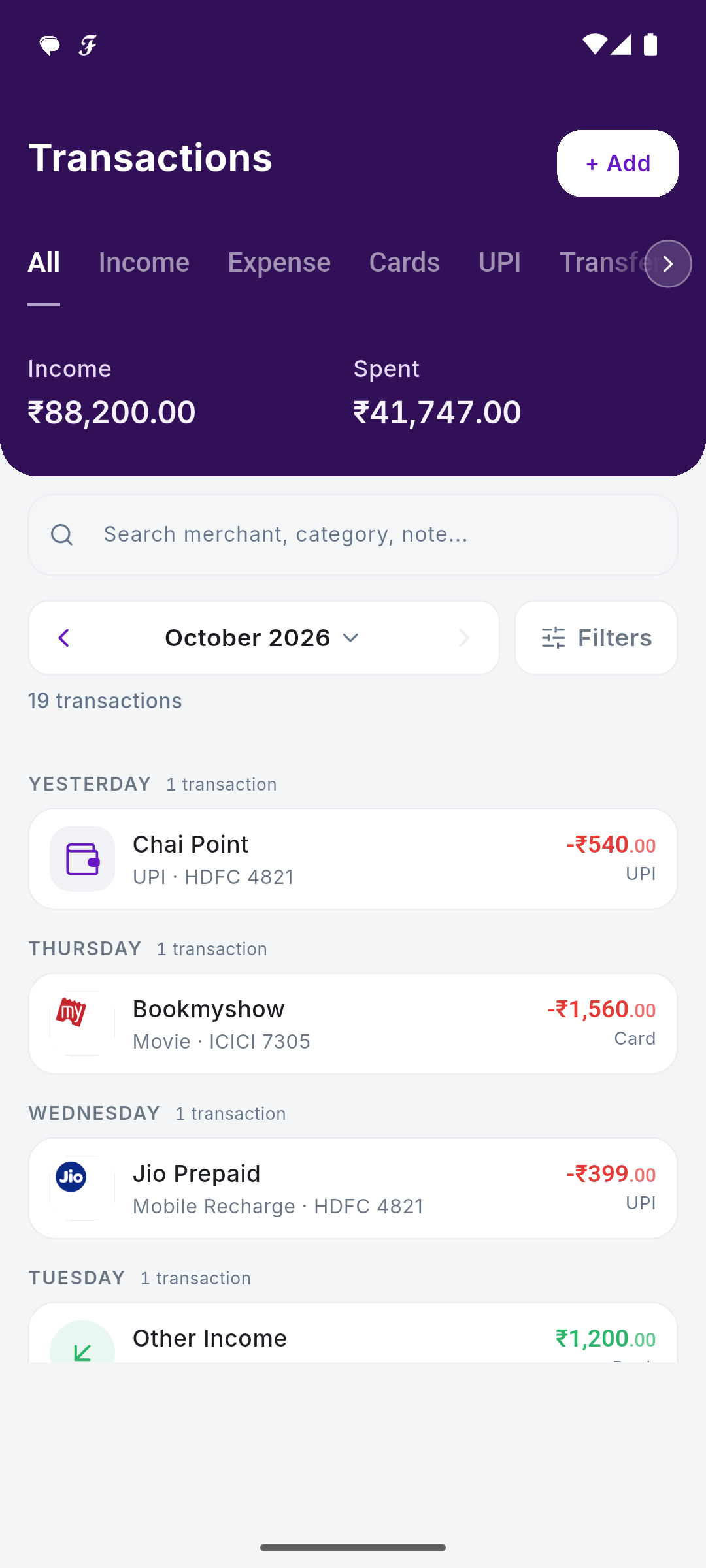
Open the Txns tab. Search with Search merchant, category, note…, or filter with All, Income, Expense, Cards, UPI, Transfer, Invested, and Month, Year, Category and Bank.
Open one
Tap a transaction to see Transaction Details: the amount, who it was paid to, category, type, date, account and the SMS sender it came from.
Change the category
Tap Category, then pick one in Choose a Category, search, or Create A New Category. SkyloFin remembers your choice for that merchant, so future payments to it get the same category.
Add a transaction by hand
For cash or anything without an SMS, tap + Add in the Txns tab. Choose Expense, Income, Transfer or Investment, enter the amount, pick a category, and fill in the merchant, date and what you paid with. Tap Save.
More you can do
- Wrong type, like a transfer counted as spending: Change the transaction type.
- Rent, EMIs and subscriptions: Mark a payment as recurring.
- Remove one: open it, tap the menu, Remove Transaction. It comes off your lists and your totals no longer count it.