Where the Month Went, in One Screen.
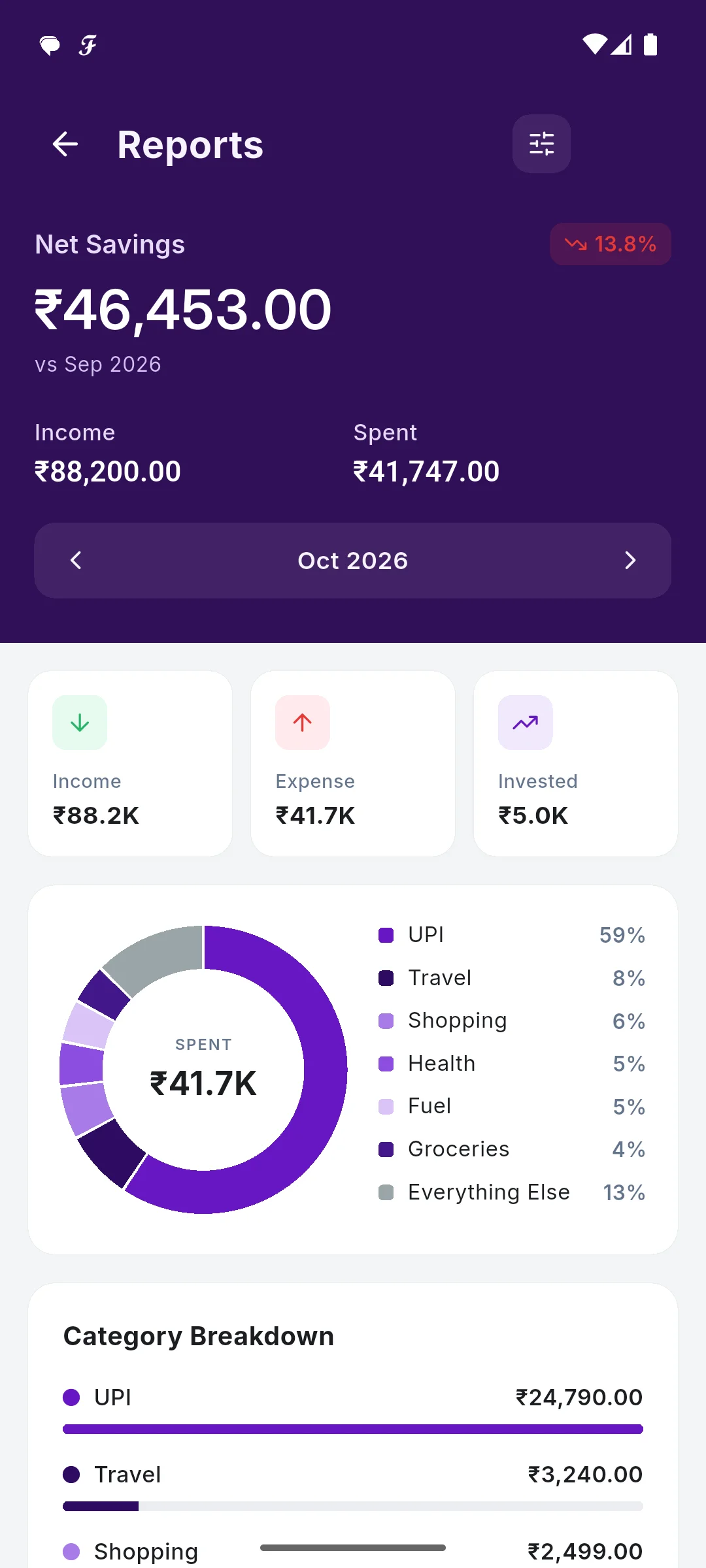
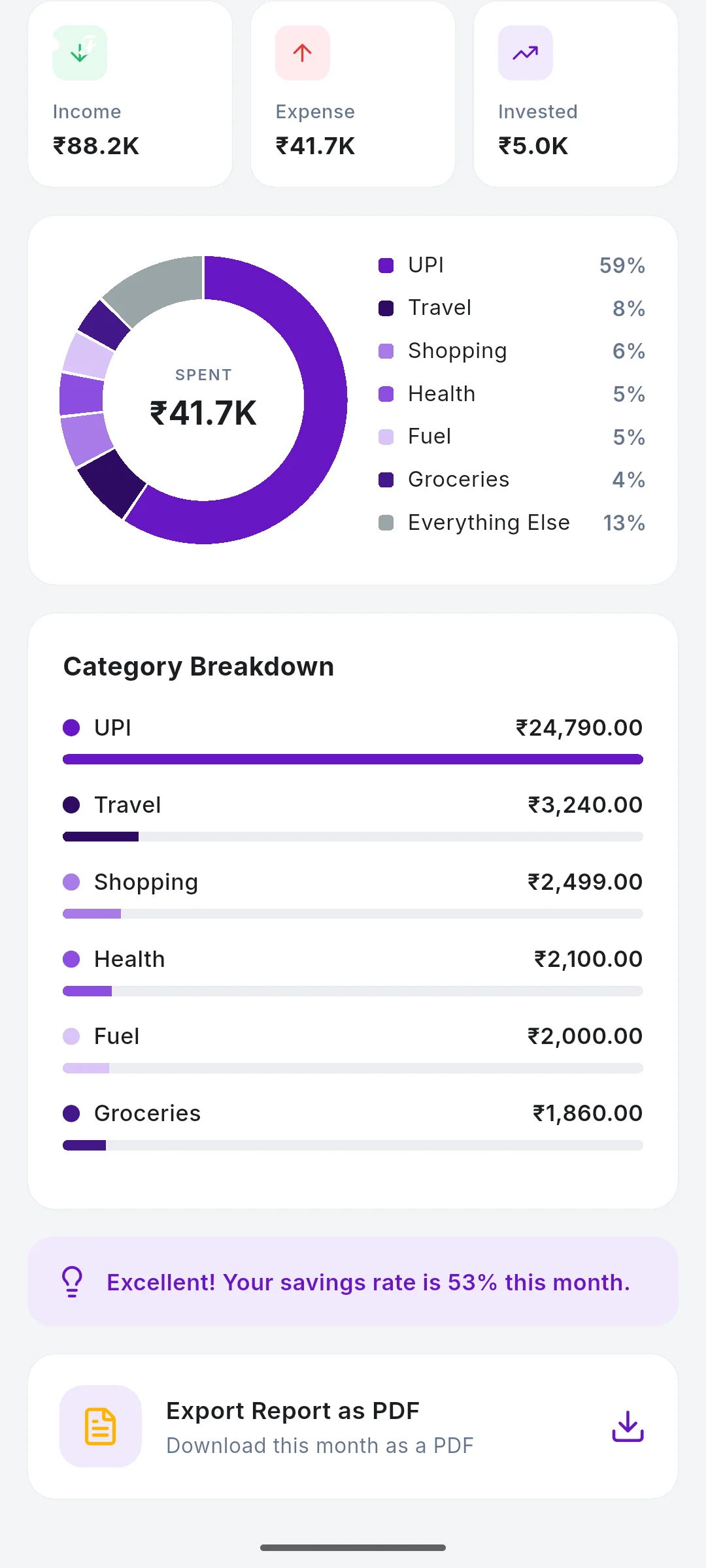
SkyloFin turns your month into a clear report: what came in, what went out, what you saved, and the categories taking most of it, compared with the month before. Export it as a PDF whenever you need one.
- PDFAny month, any time
- 3 tabsIncome, expense, invested
- vs lastMonth compared
What You Get
Everything below is in the app today.
Net savings, compared
What was left this month, next to the month before, so you see the trend, not just a number.
By category
Income, Expense and Invested tabs, each broken down by category.
Your period, your filter
Set the period, the type and the categories to see exactly the part you are asking about.
A PDF to keep
Export the month as a PDF to file, keep or send to your accountant.
Statements per account
Each bank account and card has its own statement for any period you pick.
Investments kept apart
SIPs and deposits show as invested, not as spending, so your savings rate is honest.
See It in the App
Real screens with sample data.
How It Works
Open Reports
From Quick Actions or the More tab.
Read the month
Net savings first, then each category.
Filter it
Pick the period, type and categories.
Export the PDF
Export Report as PDF at the bottom.
Step by step, with screenshots
Common Questions
Can I download my monthly spending as a PDF?
Yes. In Reports, tap Export Report as PDF. Each account and card also has its own statement.
Are investments counted as spending in the report?
No. SIPs, deposits and other investments are under Invested, so your expense total shows only what you spent.
More in SkyloFin - Expense Tracker
Want It on Your Phone?
SkyloFin is free, with no ads and nothing to buy, and needs Android 7.0 or later.