How to Use the SkyloFin App
Step by step, with screenshots: from the first sign-in to budgets, bills, backup and privacy.
SkyloFin reads the transaction alerts your bank already sends and turns them into a clear picture of your money, on your own phone. These guides walk through the app one task at a time, with a screenshot for each step. Start at the top if you are new, or jump to what you need. The screenshots use sample data, not a real account.
Getting Started
Install the app, allow bank SMS and see your first transactions.
- Step 1Install SkyloFin and Sign InInstall the app, go through the welcome screens, sign in with Google and set up your profile.Read guide →
- Step 2Allow Bank SMS and NotificationsTurn on Bank SMS so transactions are added for you, and notifications for bill reminders and alerts.Read guide →
- Step 3Your First Sync: How Transactions AppearAfter you allow SMS, the app reads the last 90 days of bank messages and your transactions appear.Read guide →
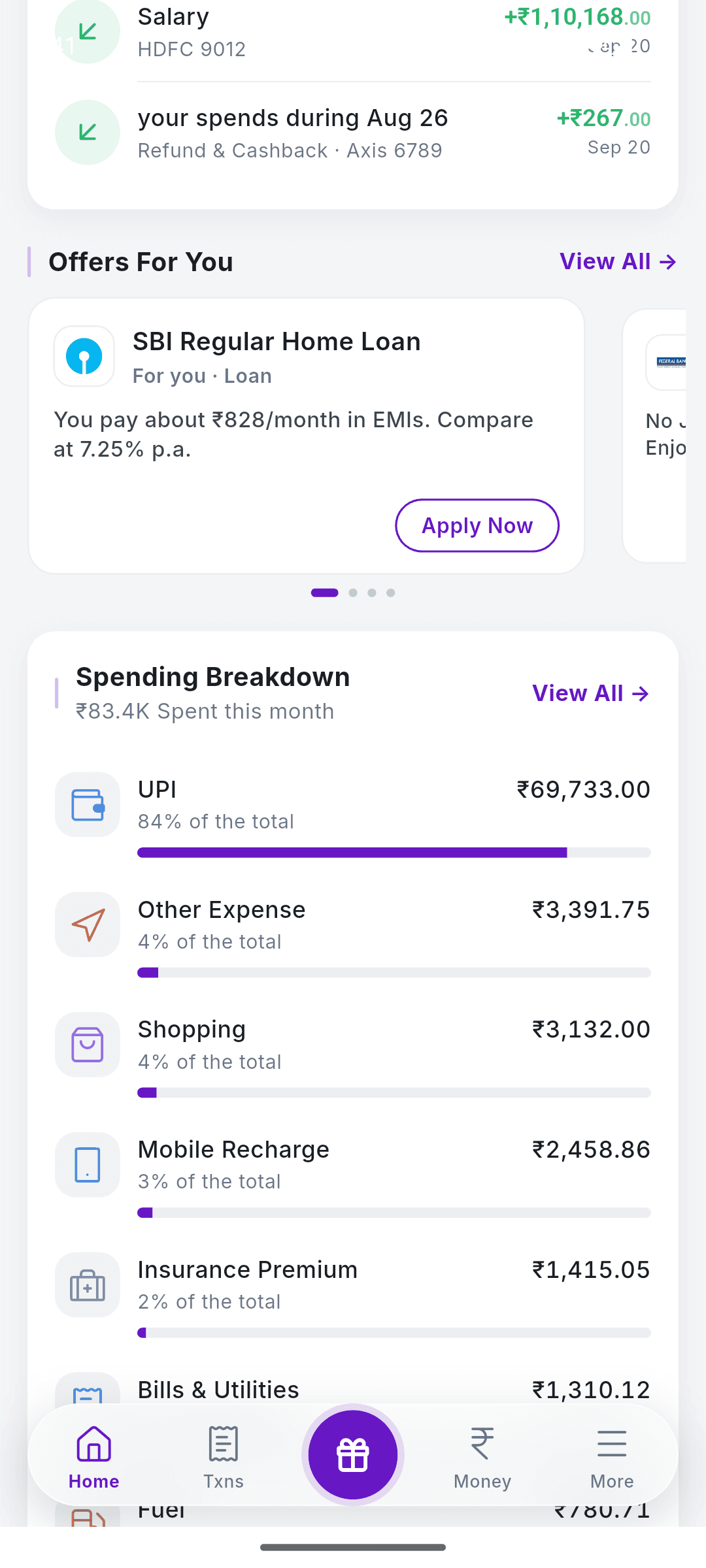
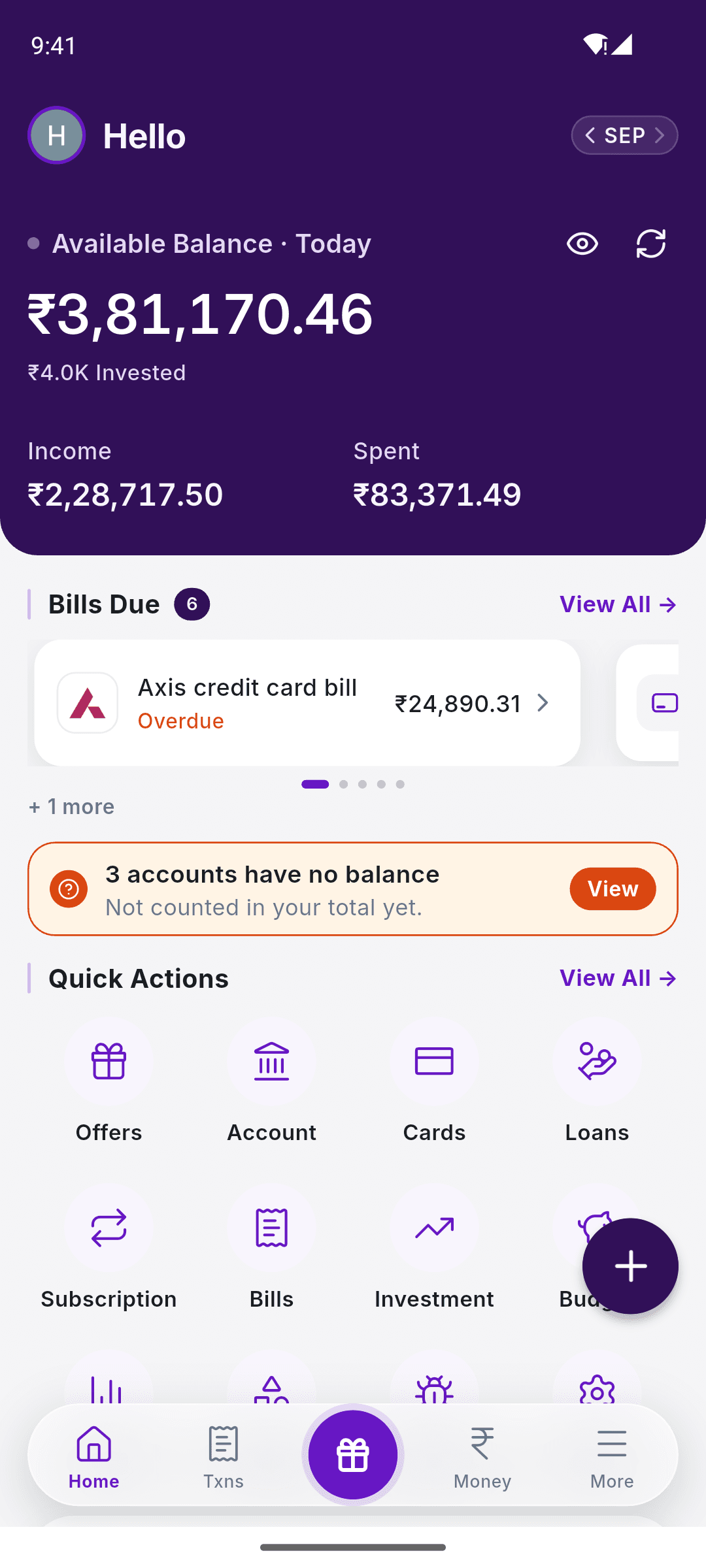
- Step 4The Dashboard ExplainedThe Home tab at a glance: balance, income and spending, bills due, quick actions and recent transactions.Read guide →


Transactions and Categories
Find, fix and sort what you spend and earn.
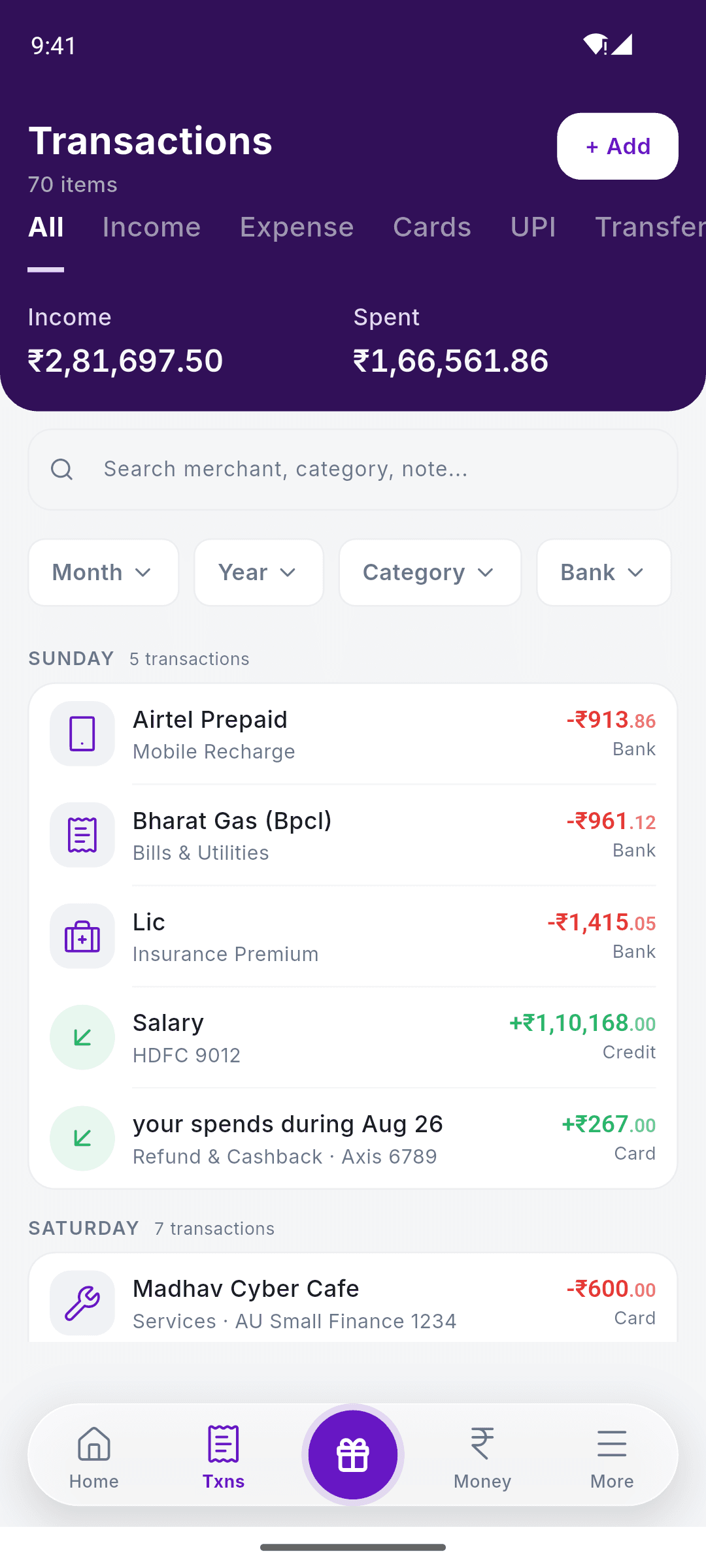
- Step 5Transactions: Find, Fix and AddSearch and filter your transactions, open one to see its details, change its category, and add a cash payment by hand.Read guide →
- Step 6Change a Transaction’s TypeMark a payment as income, expense, self transfer or investment, so your spending totals are right.Read guide →
- Step 7Mark a Payment as RecurringTell SkyloFin a payment repeats, like rent, an EMI or a subscription, so it lands in the right place and you get a reminder.Read guide →
- Step 8Categories: See and Add Your OwnBrowse every category SkyloFin uses and create your own.Read guide →


Accounts and Cards
Bank balances, loans, cards and investments in one place.
- Step 9Money: Net Worth and Bank AccountsSee your net worth, and view, fix or add your bank accounts.Read guide →
- Step 10Check Your Bank BalanceFill in a balance with your bank’s missed-call balance service, straight from the app.Read guide →
- Step 11Change an Account to a LoanIf an account is really a loan, like a home loan, set its type so it counts as money you owe.Read guide →
- Step 12Loans: What You Owe and What You Have PaidSee every loan, what is outstanding, the EMIs paid so far and the next one due.Read guide →
- Step 13Credit and Debit CardsSee what you owe on each card, when it is due, and turn on bill reminders.Read guide →
- Step 14InvestmentsKeep your mutual funds, deposits and other holdings in one place.Read guide →


Bills and Budgets
Due dates, subscriptions, budgets, goals and monthly reports.
- Step 15SubscriptionsSee every subscription and what they cost you a month.Read guide →
- Step 16Bills and Due-Date RemindersCard statements become bills automatically. See what is due, get reminders and mark bills as paid.Read guide →
- Step 17Budgets and Savings GoalsSet a monthly budget, overall or per category, and see when you go over.Read guide →
- Step 18Reports and Monthly PDF StatementsSee where the month went, compare with last month, and export the month as a PDF.Read guide →


Offers and Tools
Compare cards and loans, use the calculators, find an IFSC code and check bank holidays.
- Step 19Offers: Compare Cards and LoansCompare credit cards, loans, savings and demat accounts, and shopping deals, from the gift button.Read guide →
- Step 20Find Your Best Credit CardSee the credit cards you can get, with the most money back first.Read guide →
- Step 21Find a Loan You Can GetEnter the amount you need and see the loans you qualify for, lowest rate first.Read guide →
- Step 22Calculators and Money ToolsEMI, SIP, FD, PPF, tax and more, plus card and banking tools, all from the More tab.Read guide →
- Step 23Find an IFSC CodeSearch any bank branch in India by IFSC, MICR or name, and copy or share its details.Read guide →
- Step 24Bank HolidaysSee when banks are closed this month and this year.Read guide →


Settings and Security
Every setting, alerts, data sources, backup and app lock.
- Step 25Your Settings: Everything in Your ProfileEvery setting in one place: money, data sources, sync and backup, notifications, security, about and help.Read guide →
- Step 26Notifications and AlertsSee your notifications in the app and choose which alerts you get.Read guide →
- Step 27Data Sources: SMS and Bank App NotificationsChoose where SkyloFin reads your transactions from.Read guide →
- Step 28Backup and Restore with Google DriveKeep an encrypted backup in your own Google Drive and restore it on a new phone.Read guide →
- Step 29App Lock and Hiding AmountsLock SkyloFin with your fingerprint, face or screen lock, and hide amounts on screen.Read guide →


Profile and Help
Your profile, reporting a problem and deleting your data.
- Step 30Your Profile, Customer ID and Signing OutEdit your name and phone number, find your Customer ID and sign out.Read guide →
- Step 31Report a Problem or a Missing TransactionTell us when a transaction is wrong or missing, so we can fix it for everyone.Read guide →
- Step 32Delete Your Data or Your AccountClear the data on your phone, delete your Drive backup, or close your SkyloFin account.Read guide →