
Most of us do not use just one UPI app. PhonePe for the kirana shop because the QR is PhonePe. Google Pay for splitting dinner with friends. Paytm for the electricity bill or a cashback offer. Then month end comes and you open three apps, scroll three histories, and still cannot get one total.
The direct answer: stop tracking by app and start tracking by bank account. Every payment from PhonePe, Google Pay and Paytm comes out of a bank account you own. If you collect your spending at the account level, through bank SMS or a bank statement, all three apps fall into one list automatically.
Below you will find where each app keeps its own history, why adding those up by hand goes wrong, and two ways to see everything together.
Why the app histories never add up neatly
Each UPI app keeps a record of the payments made through it, and nothing else. Google Pay’s help page says this in plain words: your transaction history only contains payments made through Google Pay, not all UPI or banking transactions. PhonePe and Paytm are the same.
That creates three problems when you try to combine them:
- Blind spots. Payments from your bank’s own app, debit card swipes, auto-debits for EMIs and SIPs, and ATM cash do not appear in any UPI app.
- Double counting. Sending ₹5,000 from your HDFC account to your own SBI account through Google Pay looks like spending in one app and a receipt in another.
- No common categories. One app may group spends, another may not, and none of them use the same labels.
So the app histories are good for one job: checking a single payment, getting a reference ID, or raising a complaint. They are a poor tool for answering “how much did I spend this month?”
Where each app keeps its history
You will still need these screens now and then, so here is where to find them in each app.
| App | Where to find history | Statement download | What it misses |
|---|---|---|---|
| PhonePe | Tap History on the home screen, then pick a payment to see its details and reference ID | Check the app for options on your version | Payments made from other apps, cards, cash |
| Google Pay | Under Manage your money, tap See transaction history; filter by status, date, amount or payment type | More menu, then Get statement, choose a period | Everything not paid through Google Pay |
| Paytm | Balance & History section (called Passbook in some versions) | Download statement for a date range, such as a full financial year | Payments made from other apps, cards, cash |

App menus change after updates, so if a label has moved, look for History, Passbook or Statement in the app’s menu.
Option 1: One bank statement as your single source
This is the no-app, fully manual route, and it is more reliable than combining three app histories.
- List the bank accounts your UPI apps are linked to. Most people have one or two. In each UPI app, the linked accounts are shown in the profile or bank account section.
- Once a month, download the statement for each of those accounts from your bank’s app or net banking, for the 1st to the last day of the month.
- Open it in Google Sheets or Excel. Delete the credit rows (salary, refunds, money received).
- Delete transfers to your own accounts and your credit card bill payment. Those are not new spending.
- Add a Category column and fill it in. UPI rows usually show the payee name or UPI ID, which is enough to tell Swiggy from the society maintenance.
- Use a pivot table or SUMIF to total each category.
You now have PhonePe, Google Pay, Paytm, debit card and auto-debit spends in one place, with no app guesswork. It takes 20 to 30 minutes a month. The catch is that you only find out at month end, when it is too late to change anything.
Option 2: Let your bank SMS build the list as you go
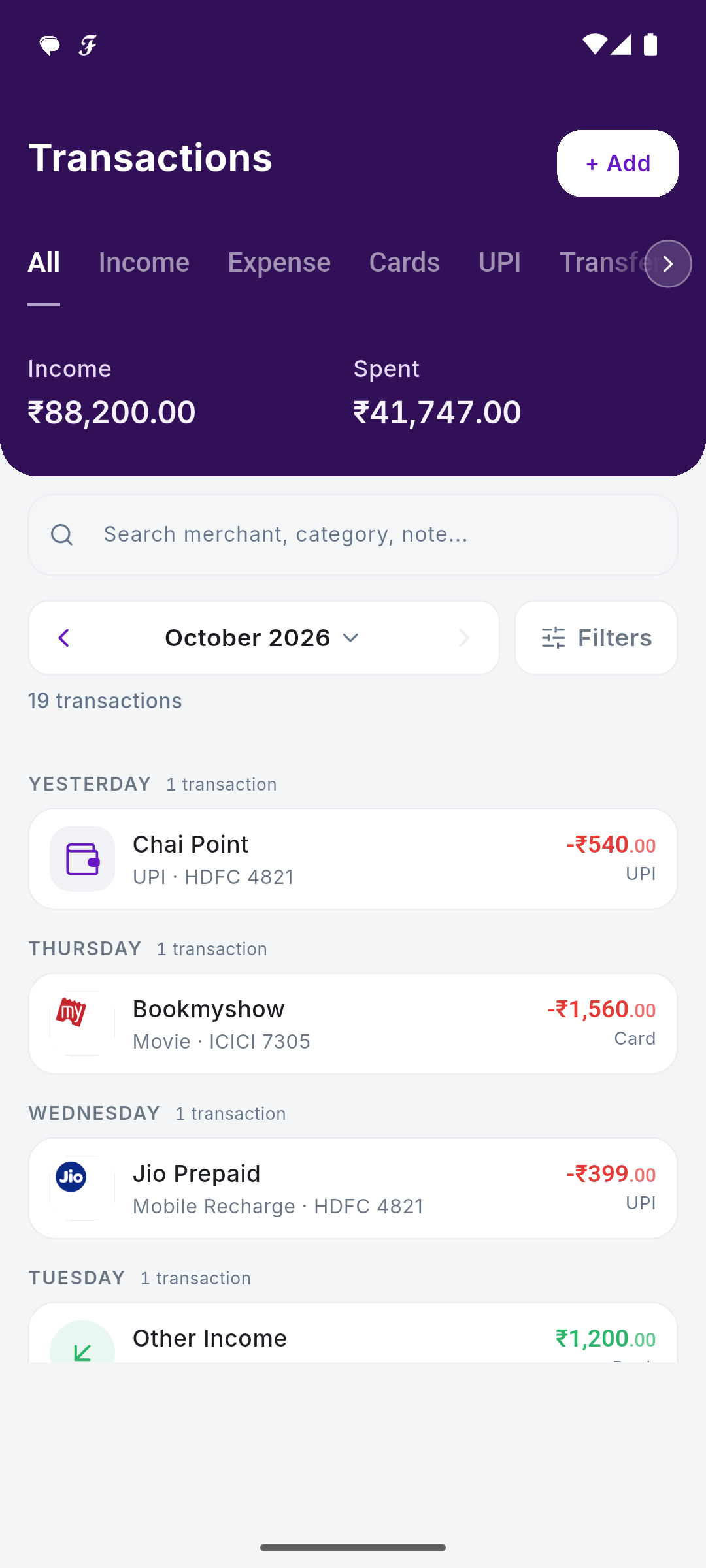
Your bank sends an SMS for most account debits, whatever app you used. An SMS-based tracker on Android reads those messages and builds the combined list daily, so you see the month while it is still happening.
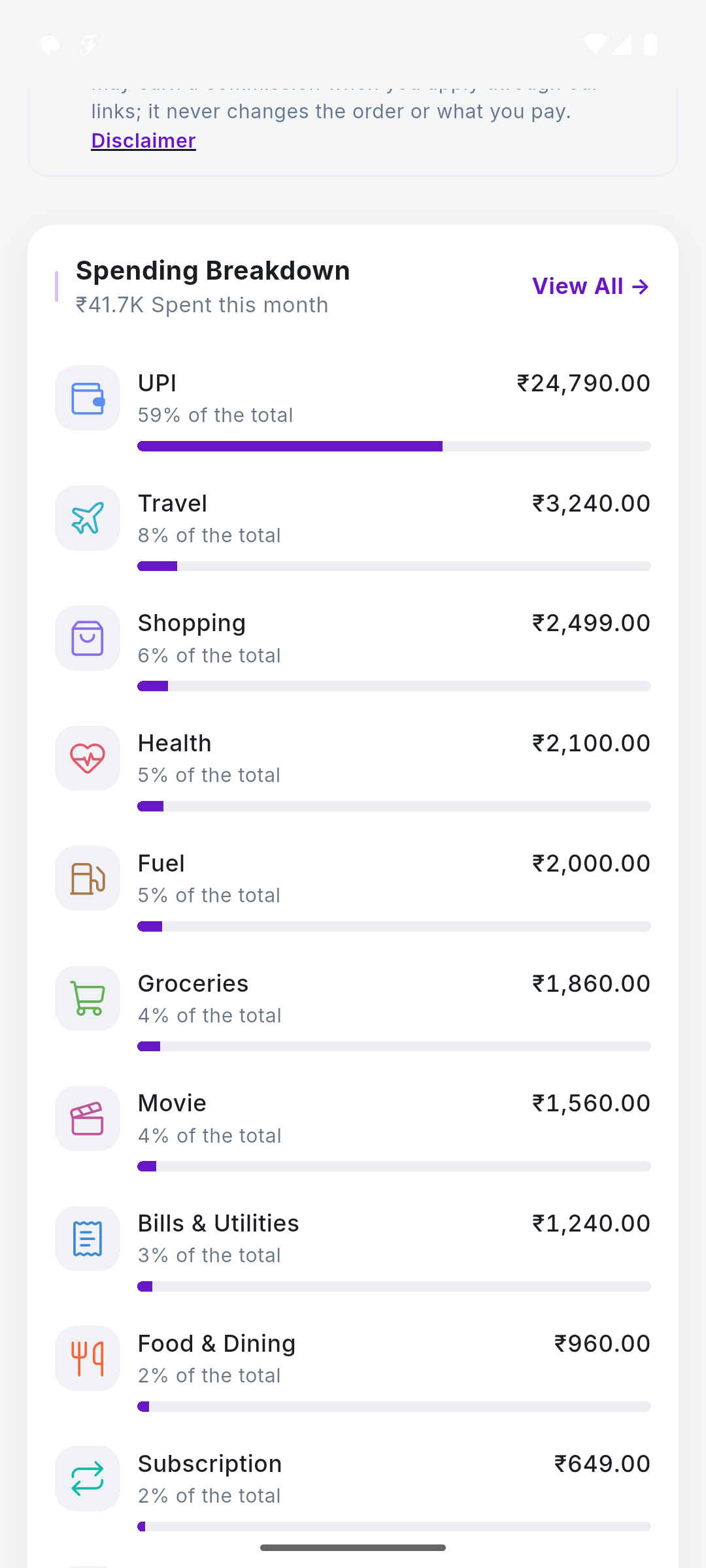
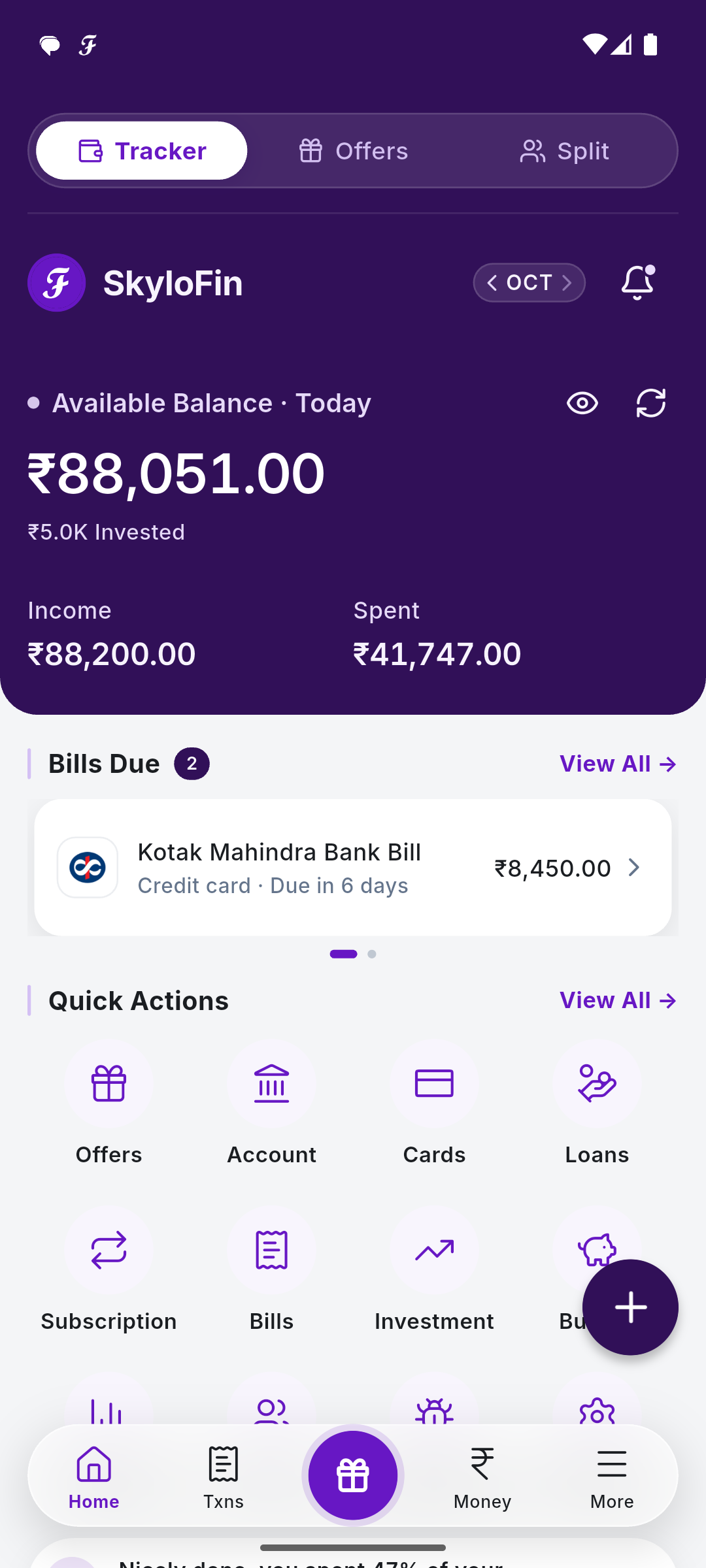
SkyloFin does this on the phone itself. It reads only bank and card senders, turns each SMS into a transaction with amount, date, account, shop and category, and groups everything by the account it came from in the Money hub. It does not connect to PhonePe, Google Pay or Paytm, and it never asks for a UPI PIN, bank login or net-banking password. SkyloFin is free on Android, with no ads.

To see a single account’s spends, use the money and bank accounts screen, or search transactions by bank. If you have more than one card too, the cards guide shows how card spends sit alongside UPI.
Two things that need a manual touch
- Some banks skip SMS for very small UPI payments. HDFC Bank, for example, said in 2024 it would send UPI SMS only for payments above ₹100, with email alerts for all. Check your bank statement once a month for those.
- Cash and payments from wallet balances may not create a bank SMS. Add them by hand.
A quick example: one month, three apps
Say Priya, who works in Pune, has one salary account and uses all three apps. Here is her month, first by app and then by category.
| Category | PhonePe | Google Pay | Paytm | Total |
|---|---|---|---|---|
| Groceries | ₹4,200 | ₹600 | ₹0 | ₹4,800 |
| Food delivery | ₹900 | ₹2,700 | ₹0 | ₹3,600 |
| Bills and recharges | ₹0 | ₹0 | ₹2,350 | ₹2,350 |
| Travel and fuel | ₹1,500 | ₹800 | ₹0 | ₹2,300 |
| Split with friends | ₹0 | ₹1,900 | ₹0 | ₹1,900 |
| Total | ₹6,600 | ₹6,000 | ₹2,350 | ₹14,950 |
Looking app by app, nothing seems large. PhonePe says ₹6,600, Google Pay ₹6,000. Only the combined view shows that food delivery is ₹3,600, almost as much as groceries, spread across two apps so it never felt big.
This is the main reason to see everything in one place. Overspending hides in the split.
Small habits that make the combined view cleaner
- Link fewer bank accounts to UPI. One spending account for all UPI apps makes any method easier.
- Keep savings and investments in a separate account that you never link to a UPI app.
- When you split a bill, note who owes you. Money coming back from friends is not income, it reduces what you spent.
- Pick one UPI app for bills and recharges. It makes recurring payments easy to spot.
Frequently asked questions
Can I merge PhonePe and Google Pay history into one app?
The UPI apps do not share history with each other. The practical way is to track at the bank level, through bank SMS or a bank statement, which already includes payments from every UPI app.
Does PhonePe history show payments made through Google Pay?
No. Each UPI app shows only the payments made through it, even if the same bank account is linked to both.
Will an SMS-based tracker see my Paytm payments?
If the Paytm payment was made by UPI from your bank account, your bank usually sends an SMS, and the tracker can read that. Payments that do not touch your bank account at that moment may not create an SMS.
Is the bank statement enough on its own?
For a monthly total, yes. It covers every UPI app, debit card and auto-debit. You only miss cash, which you need to add by hand anyway.
One bank account, one list, every app. Get SkyloFin free on Android if you want it built for you, or download this month’s statement and try the sheet method today.
Last checked: October 2026.
Updated 20 Oct 2026.