
A ₹149 music plan you took for one road trip. A ₹299 OTT pack bought for one cricket series. A cloud storage plan from an old phone. None of them is big, so none of them gets noticed, and together they can quietly take ₹1,000 or more out of your salary every month.
The direct answer: forgotten subscriptions hide in five places. Your UPI app’s AutoPay list, Google Play, your credit and debit cards, the service’s own account page, and your bank statement. Check each one once, cancel what you don’t use, and set a simple rule so new ones can’t sneak in.
The whole hunt takes about 20 minutes. You don’t need any app for it, though one helps you keep the list clean afterwards.

Step 1: Check UPI AutoPay mandates first
UPI AutoPay is now the most common way Indian subscriptions renew. When you pay for an OTT plan, a phone recharge or an app with UPI and tick “autopay”, you create a mandate. NPCI’s AutoPay rules let you pause or revoke a mandate any time, from the UPI app where you set it up.
In Google Pay: tap your profile picture at the top right, then Autopay. Under the Live tab, tap a mandate, choose Cancel autopay and enter your UPI PIN. Google Pay notes that loan mandates can’t be cancelled from the app; for those, contact the lender.
In PhonePe: go to your Profile, then Autopay Settings, find the mandate and delete it.
In other UPI apps such as Paytm, BHIM or your bank’s app, look for “Autopay” or “Mandates” in the profile or settings menu. Check every UPI app you have ever used, because each one keeps its own list.
Tip: before a UPI AutoPay debit, your app sends a notification about 24 hours ahead. Tapping it lets you pause or cancel that mandate with your UPI PIN. If a notification ever surprises you, act on it then and there. NPCI’s UPI Help assistant is also built to show and manage mandates.
Step 2: Check Google Play subscriptions
Subscriptions bought inside Android apps are billed through Google Play. To see them:
- Open the Google Play Store app.
- Tap your profile picture, then Payments & subscriptions, then Subscriptions.
- Tap the subscription you want to stop and choose Cancel subscription.
- Follow the steps on screen.
Two things catch people out. Uninstalling an app does not cancel its subscription; Google says so plainly. And after you cancel, you keep access until the end of the period you’ve paid for, so there is no reason to wait until the last day.
Step 3: Check your cards
Some services, especially international ones and older Indian plans, charge your credit or debit card directly. Under RBI’s rules, recurring card payments need an e-mandate that you approved once, and your bank must give you an online way to withdraw it.
- Open your bank’s app or net banking and look for “Standing instructions”, “E-mandates” or “Recurring payments” under the card.
- Withdraw any you no longer want. The bank will ask for an OTP or similar check.
- Your bank also sends a notice before each recurring card charge, at least 24 hours ahead, with an option to opt out.
Step 4: Search your bank statement and SMS
Steps 1 to 3 catch most subscriptions. This step catches the rest, including charges set up long ago or on a card you rarely use. Go through the last three months and look for the same merchant name with the same amount, or close to it, every month.
The manual way: download the last three months of statements from net banking for each savings account and card. Search for words like “subscription”, “autopay”, “mandate”, “recurring”, or common names such as Netflix, Prime, Hotstar, Spotify, YouTube, Google, Apple or Microsoft. Note each one in a list.
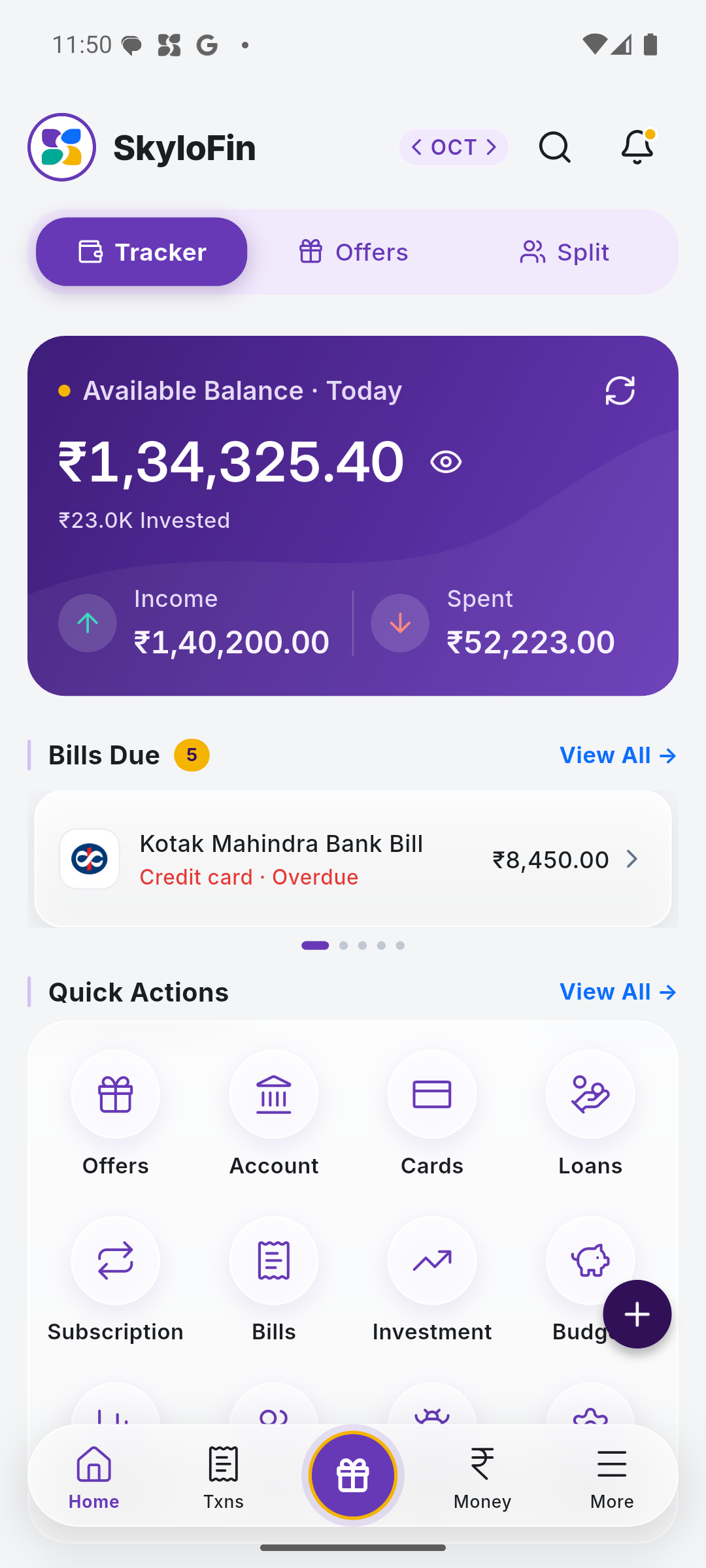
The faster way: if your bank alerts reach you by SMS, an SMS-based tracker has already built that list for you. In SkyloFin you can search transactions by shop name and spot the repeats in seconds, without a bank login.

If you’d rather not dig through PDFs every few months, SkyloFin is free on Android, with no ads and no bank login.
Step 5: Decide what stays
Write every subscription in one table and be honest about the last column.
| Subscription | Charge | Per year | Last used | Keep? |
|---|---|---|---|---|
| OTT pack A | ₹299 a month | ₹3,588 | Yesterday | Yes |
| OTT pack B | ₹149 a month | ₹1,788 | Two months ago | Cancel |
| Music app | ₹119 a month | ₹1,428 | Daily | Yes |
| Cloud storage | ₹130 a month | ₹1,560 | Old phone | Cancel |
| Fitness app | ₹1,499 a year | ₹1,499 | Never | Cancel |
| Savings from cancelling | ₹4,847 |
The amounts above are examples. Use your own. Multiplying by 12 is the useful part: ₹149 a month sounds like nothing, but ₹1,788 a year is a weekend trip.
Two more checks before you cancel. If you pay monthly but use something every day, see if the annual plan is cheaper. And if two family members pay for the same service, see if a family plan covers both.
Found a charge you can’t place?
Sometimes the name on the SMS or statement doesn’t match any brand you know. Payment gateways and app stores often appear instead of the service itself, for example a Google Play charge for an app, or a gateway name for a website plan.
- Match the exact amount and date against your email inbox. Search for the amount, like “₹199”, and you’ll usually find the receipt.
- If the charge came through Google Play, your Play order history lists the app behind it.
- If it came through UPI AutoPay, the mandate in your UPI app shows the merchant’s name.
- If you still can’t identify it, raise it with your bank or card issuer. An unknown recurring charge is worth a phone call.
Step 6: Stop new ones sneaking in
- Free trial rule: the day you start a free trial, set a phone reminder two days before it ends. Decide then, not after the first charge.
- One payment method for subscriptions: put all of them on one card or one UPI app so there is one list to check.
- Read the 24-hour notices: UPI and card mandates warn you before each charge. Don’t swipe them away unread.
- Quarterly check: repeat steps 1 and 2 every three months. It takes five minutes once you know where to look.
SkyloFin keeps a subscriptions list so you see every renewal in one place, and you can mark regular charges as recurring payments to see them coming.
Frequently asked questions
Does deleting an app cancel its subscription?
No. Google Play says uninstalling an app does not cancel the subscription. Cancel it from Payments & subscriptions in the Play Store, or from the service’s own account page if you paid there.
How do I cancel a UPI AutoPay mandate?
Open the UPI app where you set it up and find Autopay or Mandates in your profile or settings. Pick the mandate, cancel it and confirm with your UPI PIN. Loan mandates usually have to be cancelled through the lender.
I cancelled but was still charged. What now?
Check whether the charge was for a period that started before you cancelled. If not, contact the service first, then your bank or UPI app’s help section with the transaction reference.
Can SkyloFin cancel subscriptions for me?
No. SkyloFin does not make payments or change mandates. It shows you what you pay for, so you can cancel in the right place.
Twenty minutes, five places, one table. Most people find at least one charge they had forgotten. To keep the list in view every month without a spreadsheet, download SkyloFin free on Android.
Last checked: October 2026.
Updated 20 Oct 2026.