
You install an expense tracker, and before it shows you a single rupee it asks to “send and view SMS messages”. Your inbox holds OTPs, bank alerts, Aadhaar updates and messages from family. It is fair to pause.
The short answer: giving a trusted budgeting app SMS access is reasonably safe if it comes from Google Play, explains exactly what it reads, and lets you switch the access off any time. The permission itself is broad. What keeps you safe is Google Play’s rules for apps that ask for it, and the controls Android gives you to check and take it back.
This post covers the permission itself: what it technically allows, the policy an app must pass to use it, and how to audit it on your phone. If you want to compare what different kinds of trackers can see, such as account-aggregator and bank-login apps, read what expense tracker apps can see about you.
What the SMS permission technically allows
On Android, SMS access is not one switch. It is a group of separate permissions that the phone shows to you as one “SMS” option. The ones that matter here are:
| Permission | What it allows | Needed by an SMS expense tracker? |
|---|---|---|
| READ_SMS | Read messages already in your inbox | Yes, to import past bank alerts |
| RECEIVE_SMS | See new messages as they arrive | Yes, to log new spends automatically |
| SEND_SMS | Send messages from your number | No |
| RECEIVE_MMS / RECEIVE_WAP_PUSH | Receive MMS and WAP push messages | Rarely |
Two facts are worth knowing. First, Android marks READ_SMS and RECEIVE_SMS as “dangerous” permissions. Since Android 6.0, an app must ask you at the moment it needs them, and you can say no. Second, they are “hard restricted”: an app cannot hold them unless the store that installed it allows it. That is how Google Play enforces its policy.
Now the honest part. READ_SMS does not filter by sender. Once granted, the operating system lets the app read every message in your inbox, personal ones included. Any filtering, such as reading only bank and card senders, is done by the app’s own code. That is why the app you choose, and the policy it has signed up to, matter so much.
Also note what the permission does not give. It does not reveal your net-banking password or your UPI PIN, and it cannot move money. An OTP in your inbox is readable, though, which is one more reason to install only apps you trust.
Google Play’s rules for apps that ask for SMS
Google Play treats SMS as a restricted permission group. By default, only an app you have set as your phone’s default SMS app can request it. Other apps need an approved exception, and they must justify it in a Permissions Declaration Form that Google reviews.
Budgeting apps fall into one of those exceptions. Google lists “SMS-based money management”, for example apps that track and manage budget, as a permitted use. The exception covers reading and receiving messages. It does not cover sending them.
There is a second rule aimed squarely at this category. Google’s policy says personal loan or budgeting apps may not take or share your non-financial or personal SMS history. A Play-listed budgeting app that uploads your family chats is breaking a written rule, not working in a grey area.
Google also offers developers a way to read a one-time password without any SMS permission at all, the SMS Retriever API. So an app that asks for full SMS access only to auto-fill a login OTP is asking for more than it needs.
Four checks before you tap Allow
- Install from Google Play only. The SMS policy and review process apply to Play listings. An APK shared on WhatsApp or a website skips all of it.
- Read the Data safety section. On the app’s Play page, tap “Data safety” and then “See details”. The developer declares what data is collected, whether it is shared, and whether it leaves the phone.
- Read the privacy policy. It should name which messages are read (bank and card senders), where the data is stored, and whether anything is uploaded.
- Check that the app still works without SMS. A good tracker lets you add spends by hand. If an app refuses to open at all without SMS access, ask why.

How to check which apps have SMS access
Do this once now, and again every few months. The menu names below are from Google’s Android help pages. Samsung, Xiaomi and other phones use similar words in slightly different places.
See every app that has SMS access:
- Open Settings.
- Tap Security & privacy, then Privacy, then Permission manager.
- Tap SMS.
- Look at the “Allowed” list. Anything you don’t recognise, tap it and choose Don’t allow.
Turn off SMS access for one app:
- Open Settings and tap Apps.
- Tap the app (use See all apps if it isn’t listed).
- Tap Permissions, then SMS.
- Choose Don’t allow.
The app keeps working with whatever it already recorded, but it can’t read new messages. You can turn access back on the same way.
Let Android clean up after unused apps
On Android 11 and later, the system can reset permissions for apps you haven’t used in a few months. On the app’s settings page, look under “Unused app settings” and keep Pause app activity if unused switched on. Old trackers you’ve forgotten about then lose SMS access on their own.
Denied it twice? Android stops asking
If you tap Deny for a permission more than once, Android treats it as “don’t ask again” and stops showing the prompt. If you change your mind later, turn it on from the app’s Permissions page instead.
How SkyloFin handles SMS access
We’d rather show you than ask you to trust us. Here is what SkyloFin does with the permission:
- It reads bank, card and finance senders only, and ignores personal messages.
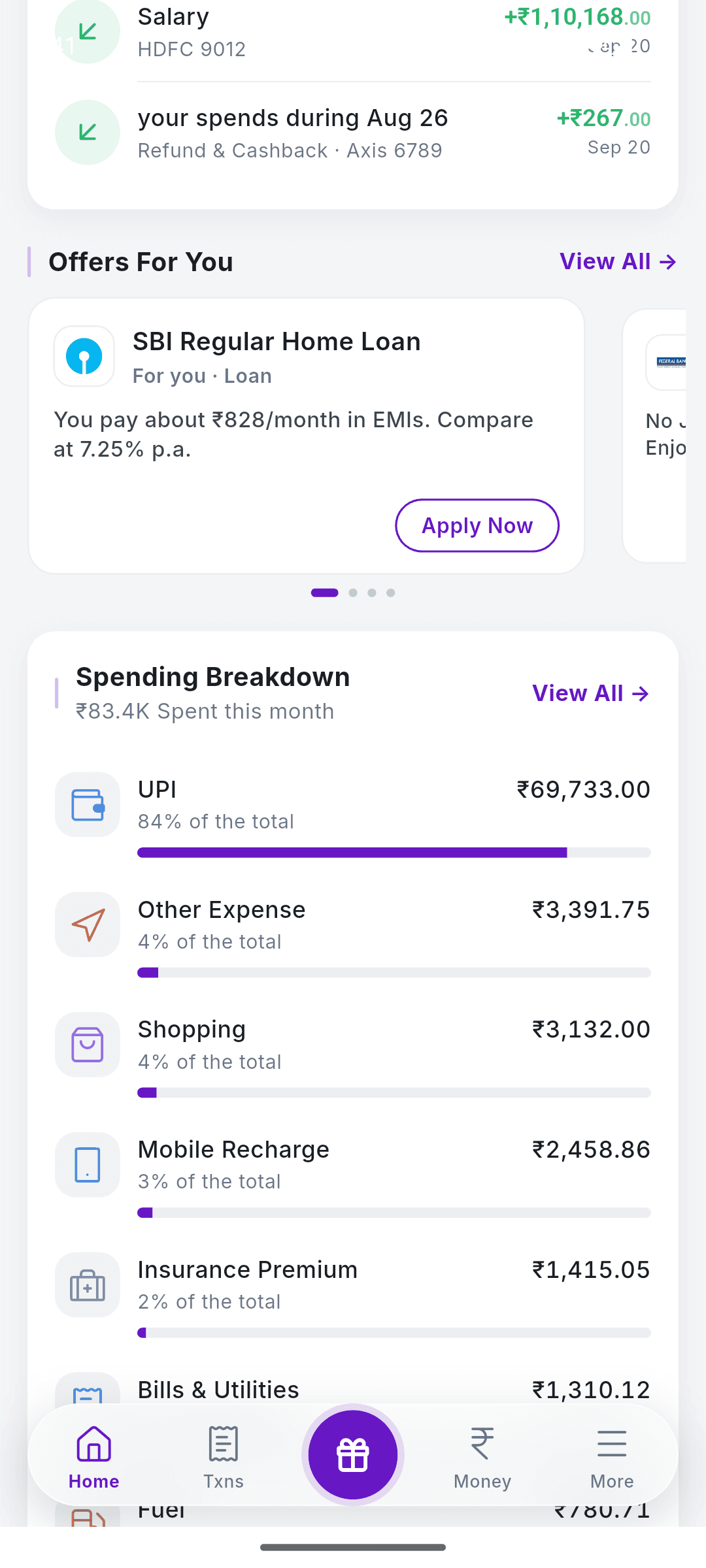
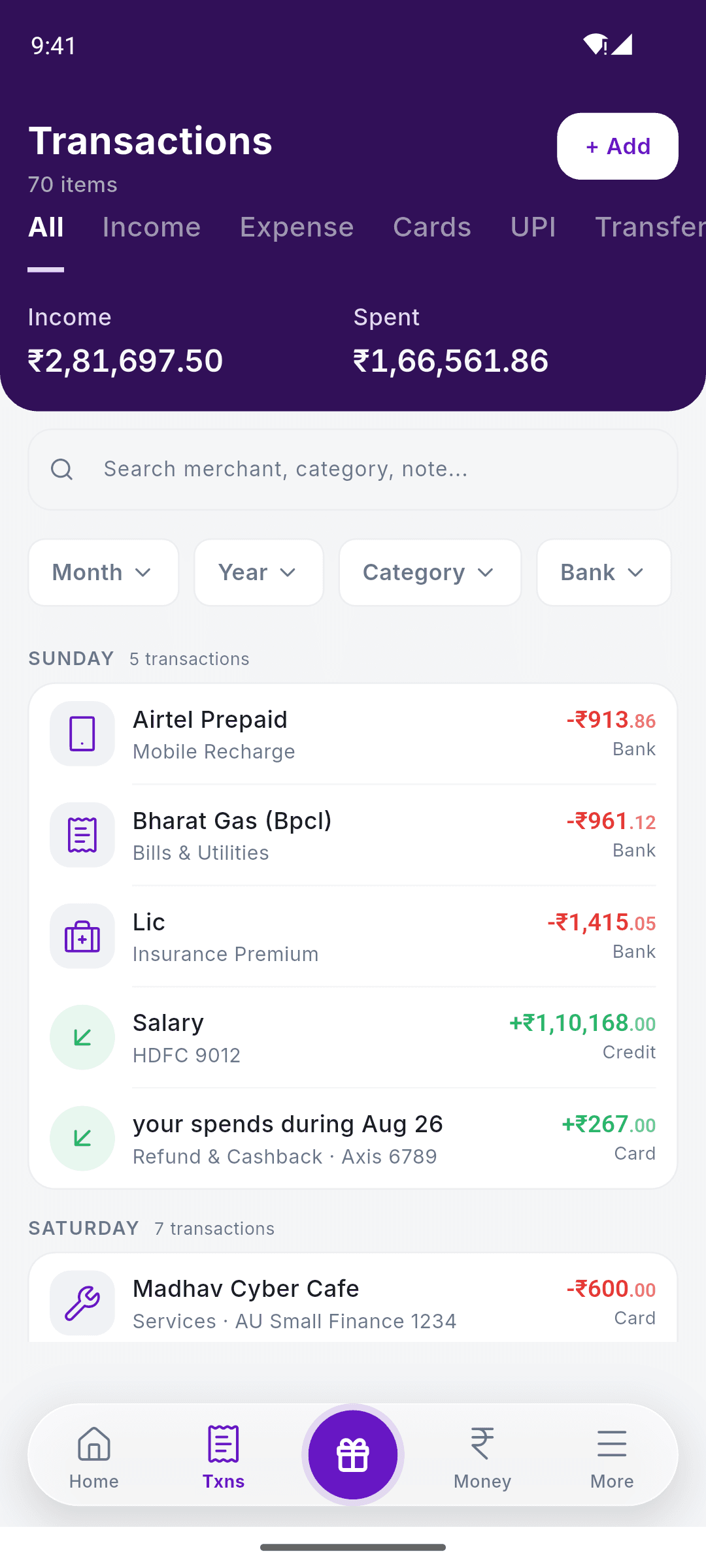
- It turns each bank SMS into a transaction on your phone: amount, date, account or card, shop and category.
- The data stays on your phone, not on SkyloFin’s servers. Backups go to your own Google Drive, encrypted.
- It never asks for a bank login, net-banking password or account aggregator link, and it cannot move money.
- It works without SMS access too. You can add every spend by hand, and turn SMS access off any time in phone settings.

The full details are on our data safety page and in the Is SkyloFin safe? explainer. If that matches what you want from a tracker, SkyloFin is free on Android, with no ads and no bank login.
When to say no
- The app is a loan app that also wants your SMS, contacts or photos.
- It was installed from outside Google Play.
- Its Data safety section says message data is shared with third parties.
- It asks to become your default SMS app when all it does is track spending.
- It wants to send SMS, which an expense tracker has no reason to do.
Frequently asked questions
Can an expense tracker read my OTPs?
Technically, yes. READ_SMS gives access to the whole inbox, OTPs included. A trustworthy app ignores them, and Google Play’s policy bars budgeting apps from sharing non-financial SMS. Still, never share an OTP, and install only apps you trust.
Can the app send SMS or make payments with this permission?
Reading and sending are separate permissions, and Google’s exception for money-management apps does not include sending. SMS access alone cannot move money from your account.
Will the app stop working if I turn SMS off?
It stops logging new spends automatically. In SkyloFin, everything already recorded stays, and you can keep adding spends by hand. See how to allow SMS and notifications to turn it back on.
Is SMS access safer than giving my net-banking login?
They are different risks. SMS access never exposes your banking password. Our post on what expense tracker apps can see compares the approaches side by side.
SMS access is a real permission, and it deserves a real decision. Check the source, read the Data safety section, know where the off switch is, and you stay in control. To try a tracker that keeps your data on your phone, get SkyloFin free on Google Play.
Last checked: October 2026.
Updated 20 Oct 2026.